Enable Command Center Alerts
Use this guide to turn on Gazette alerts for critical company events, material developments, catalysts, score changes and valuation changes.
iPhone / iPad
Sign in normally with your email magic link.
Open Safari’s sharing or page-actions menu and choose Add to Home Screen. If you do not see it immediately, scroll through the available actions or use the browser’s “More” options.
For iPhone and iPad web push, open the installed Home Screen web app rather than the ordinary browser tab.
Choose Alert Settings, then tap Enable phone alerts.
After permission is granted, the Command Center should show Notifications enabled on this device.
Tap Test this device. You should receive a Gazette test notification immediately.
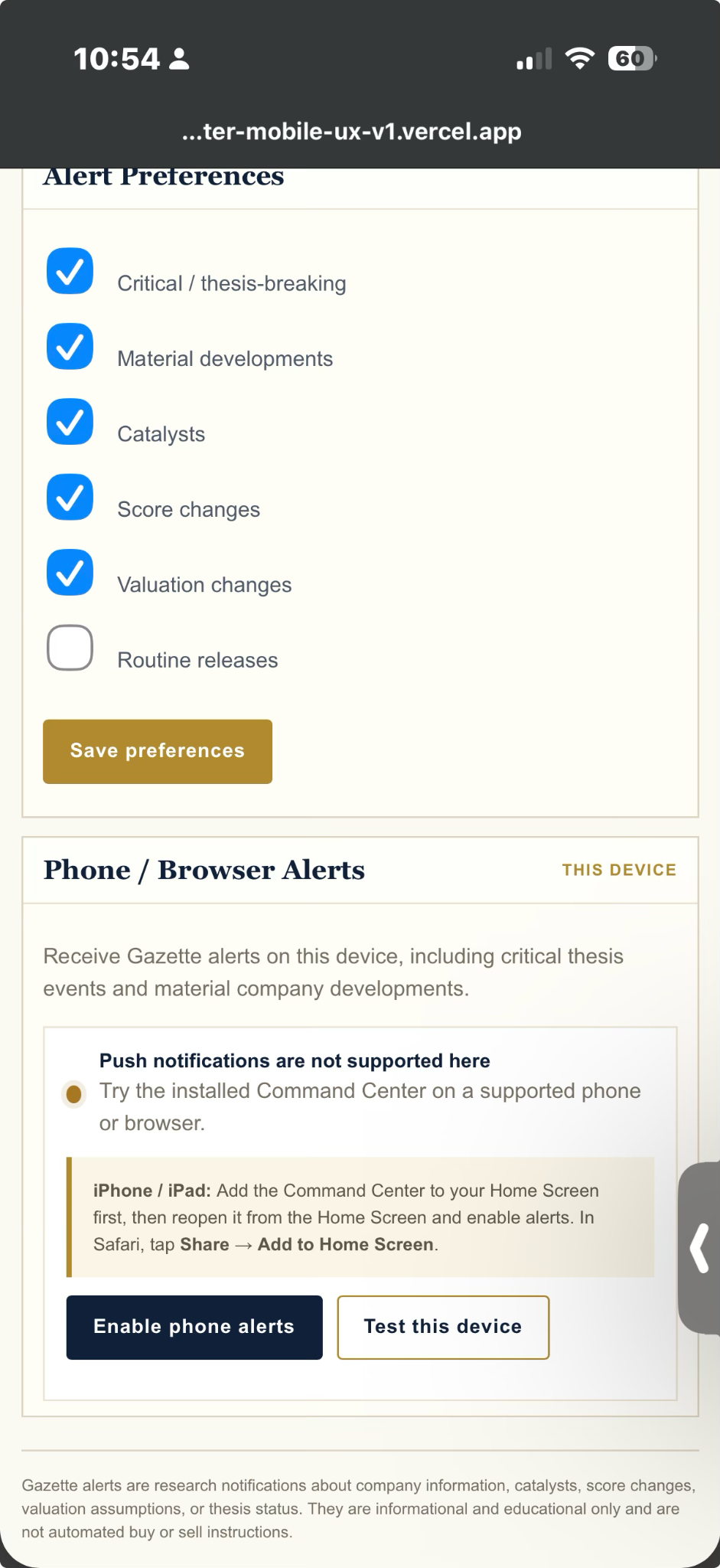
Illustrative screenshot: your iOS/browser version may look different. The important state is that the Command Center is installed to the Home Screen and notification permission is granted.
Android
On most supported Android browsers, you can usually enable notifications directly from the Command Center without first installing it to the Home Screen.
- Open the Command Center and sign in.
- Open Alert Settings.
- Tap Enable phone alerts.
- Allow notifications when the browser asks.
- Tap Test this device.
If alerts are not working
- Confirm notifications are allowed for the Command Center in your phone/browser settings.
- On iPhone/iPad, make sure you launched the Command Center from its Home Screen icon.
- Return to Alert Settings and look at the device-status message.
- If the site says notifications are blocked, re-enable notification permission in system/browser settings.
- Use Test this device before relying on live alerts.
This help page is intentionally maintained as a web page rather than a fixed PDF so it can be updated when Apple, Google, or browser vendors change their interfaces. Screenshots are examples only.